
Order Process
About the ordering process
Application for quotation process description:

1. Find products
(1) You can find the goods you need by entering keywords on the "Home" or "Advanced Search Page"
(2) You can find the goods you need according to the classification through the classification navigation bar of the Scientific Grain Officer Mall
(3) Ge You lie down! Give the order list directly to the customer service and wait for the flowers to bloom.
2. Edit product information
If the scientific research reagent products you need are not found on the website, you can edit the CAS number, purity, specifications and other product information by yourself, and you can also apply for a quotation.
3. Put in the quotation basket
Click "Apply for a quotation", and the goods will be added to your quotation basket; you can also continue to find goods and put them in the quotation basket to quote together.
(1) In the quote basket, you can adjust the quantity of goods
(2) In the quote basket, you can "move the item to your collection", or select "delete".
(3) In the quotation basket, you can directly "put it into the shopping cart" for the goods whose price and delivery date have been determined.
4. Generate a quotation
Click "Generate Quotation", the system generates a quotation number, and your quotation has been successfully submitted.
5. Check the quotation results
After the quotation is successfully submitted, the platform customer service will give feedback on the quotation result ASAP. You can check the quotation result and the status of the quotation through "My Quotation".
View Quotation/Quotation Status Description
Check the price list:
Once logged in, you can view the status of your quotation and quote results in "My Quotations".
Cancel the quotation:
cancel
When your quotation is in the "Waiting for Quote" state, you can enter "My Quotation" and cancel your quotation on the list page.
Quotation status description:
1. Wait for a quote
The customer service of the Scientific Grain Officer Platform has not yet processed your quotation. Your quotation shows the status of "waiting for quotation". At this time, you can cancel or modify your quotation.
2. The quotation is being processed
Customer service is processing your quotation.
3. Complete the quotation
The quotation result has been fed back. At this time, you can put the goods in the quotation into the shopping cart.
4. The offer is invalid
The quotation result has passed the valid period, and the platform quotation result has a valid period of 7 days. At this time, you can apply for a re-quotation.
5. Cancelled
Your cancelled quotation is displayed as "cancelled", and you can apply for a re-quotation on the "cancelled" quotation.
Standard ordering process
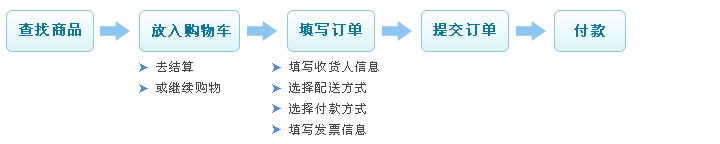
Standard ordering process description:
1. Find products
(1) You can find the goods you want to buy through the "search" function or the "classification navigation" function of the Scientific Grain Officer Platform. Products with determined prices and delivery dates can be directly put into the shopping cart. (For goods with uncertain prices and delivery dates, please apply for a quotation first, and you can buy them after completing the quotation. For details, please refer to the "Application Quotation Process")
(2) You can check the feedback results of the quotation you applied for in "My Quotation", and put the goods included in the "Complete Quotation" quotation into the shopping cart.
2. Put in the shopping cart
Products are added to your shopping cart; you can also continue to select products and put them in the shopping cart to settle together.
(1) In the shopping cart, you can adjust the quantity of purchased goods
(2) In the shopping cart, you can "move the product to your collection", or choose "delete".
3. Fill in the order.
Fill in the consignee information.
(1) Please fill in the correct consignee's name, detailed delivery address and zip code, and consignee's contact information, otherwise it will affect the delivery of your order.
(2) You can enter the "Delivery Address Book" to edit commonly used delivery addresses. After saving successfully, you can directly choose to use it when ordering again.
Select shipping method
(1) Select the time for distribution: delivery on working days; delivery on working days, weekends, and holidays; delivery on weekends and holidays.
Select a payment method
(1) If you have already prepaid, you can choose to pay with prepayment in the "Payment Method" section
(2) Online payment
(3) Post office remittance
(4) Bank transfer
(5) Cash
(6) Cheque
Fill in the invoice information
(1) Please select the invoice type you need, fill in the correct invoice information, and receive the full electric ticket. Click to view the invoice system.
(2) You can enter the "Invoice Information Book" to edit commonly used invoice information. After saving it successfully, you can directly choose to use it when ordering again.
4. Submit the order
(1) After the order information is verified to be correct, please click "Submit Order", the system generates an order number, and your order has been successfully submitted.
(2) After the order is successfully submitted, you can view the order information through "My Order" or pay for the order online.
5. Payment
After the order is successfully submitted, please make payment according to your payment cycle and selected payment method.
View Order/Order Status Description
Check the order:
After logging in, you can view your order history in "My Orders".
Cancel the order:
cancel
When your order is "waiting for payment" or "pending review", you can enter "My Orders" and cancel your order on the list page.
Order status description:
1. Wait for payment.
If your payment cycle is "payment on delivery", your order shows a "waiting for payment" status when the platform has not received your payment. At this time, you can cancel your order.
2. Pending review
The platform customer service has not reviewed or is reviewing your order. Your order shows the status of "Pending Review". At this time, you can cancel your order.
3. User cancellation
When the order is in the "Waiting for Payment" or "Pending Review" state, you click "Cancel" the order.
4. The Scientific Grain Officer Platform is cancelled
During the order review process, it is found that there is a problem with the order. After communicating and confirming with you, the platform customer service will "cancel" the order on your behalf.
5. The goods are being distributed.
Your order has entered the warehouse for distribution.
6. Shipped
Your order has been sent from the warehouse and is being delivered by the courier company.
7. Receipt pending payment
If your payment cycle is "cash on delivery", "ticket on delivery", "monthly statement", "account period", etc., the order you have received the goods sent by the platform but have not paid for is displayed as "received pending payment" status.
8. Successful transaction
The order transaction has been completed.
approval order process
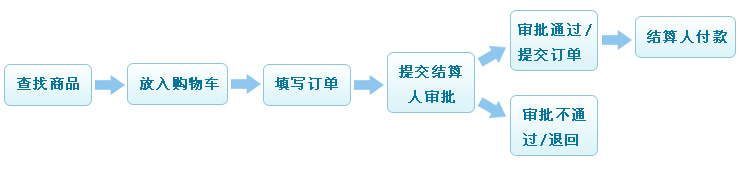
Standard ordering process description:
1. Find products
Same as the above "Standard Order Process" to find the product steps
2. Put in the shopping cart
Same as the above "standard order process", put it into the shopping cart steps
3. Fill in the order.
Select "Settlement Person"
You can choose to do the billing yourself, or the group administrator of your group can do the billing.
(1) If you choose to settle by yourself, shop according to the "standard order process", and you pay for the order yourself.
(2) If you choose the group administrator to settle, you will shop according to the "Approval Order Process", and the group administrator you choose will pay for the order for you.
Fill in the consignee information.
(1) The default is filled in by the group administrator of the settlement
(2) You can fill in the consignee information, and the group administrator who settles the order can modify it. In the end, the information when the settler submits the order shall prevail.
Select shipping method
(1) The default is filled in by the group administrator of the settlement
(2) You can fill in the delivery method, and the group administrator who settles the order can modify it. In the end, the information when the settler submits the order shall prevail.
Select a payment method
Selected by the billing group administrator
Fill in the invoice information
Filled out by the billing group administrator
4. Submit to the cashier for approval
Click "Submit Order", and the order will be submitted to the settler's "Pending Order" for review. You can check the order information and processing status through your "Pending Order".
5. Approval/Submit the order
If the approval is approved, the group administrator of the settlement will select the payment method and fill in the invoice information; after verifying the consignee information and delivery method, please click "Submit Order", and the order is successfully submitted.
After the order is approved and officially submitted, both you and the settlement can view the order information in "My Orders".
6. Approval failed/returned
If the approval is not approved, the group administrator of the settlement will return the order. In your "Pending Order", the order status is displayed as "Returned".
7. Payment
After the order is successfully submitted, the billed group administrator makes the payment according to his payment cycle and the selected payment method.
Check the status of submitted orders/pending orders
What is the pending order:
Group members apply for orders to be paid by the group administrator of their group. Orders that have not been approved or are being approved by the settled group administrator are called pending orders.
Check to submit an order:
Users with the role of "Group Member" or "Group Administrator" can view the submitted order information in the "Pending Orders" directory after logging in.
Pending order status description:
1. Pending processing
Group members submit pending orders to the group administrator, and pending orders that have not been approved by the group administrator display "Pending Processing" status.
2. Processing
The pending order being approved by the group administrator shows the "Processing" status.
3. It has been returned.
For pending orders that have not been approved, the "returned" status will be displayed, and the returned pending orders will only be displayed at the group members.
Scientific Grain Officer Platform Operation Team